Official App Store listing · One-time purchase

Shadowrocketfor iOS

iPhone / iPad client with rule-based routing and multiple protocols; the app is a one-time purchase. Get existing subscriptions from your service provider.

  • Config
  • On Demand
  • Subscribe
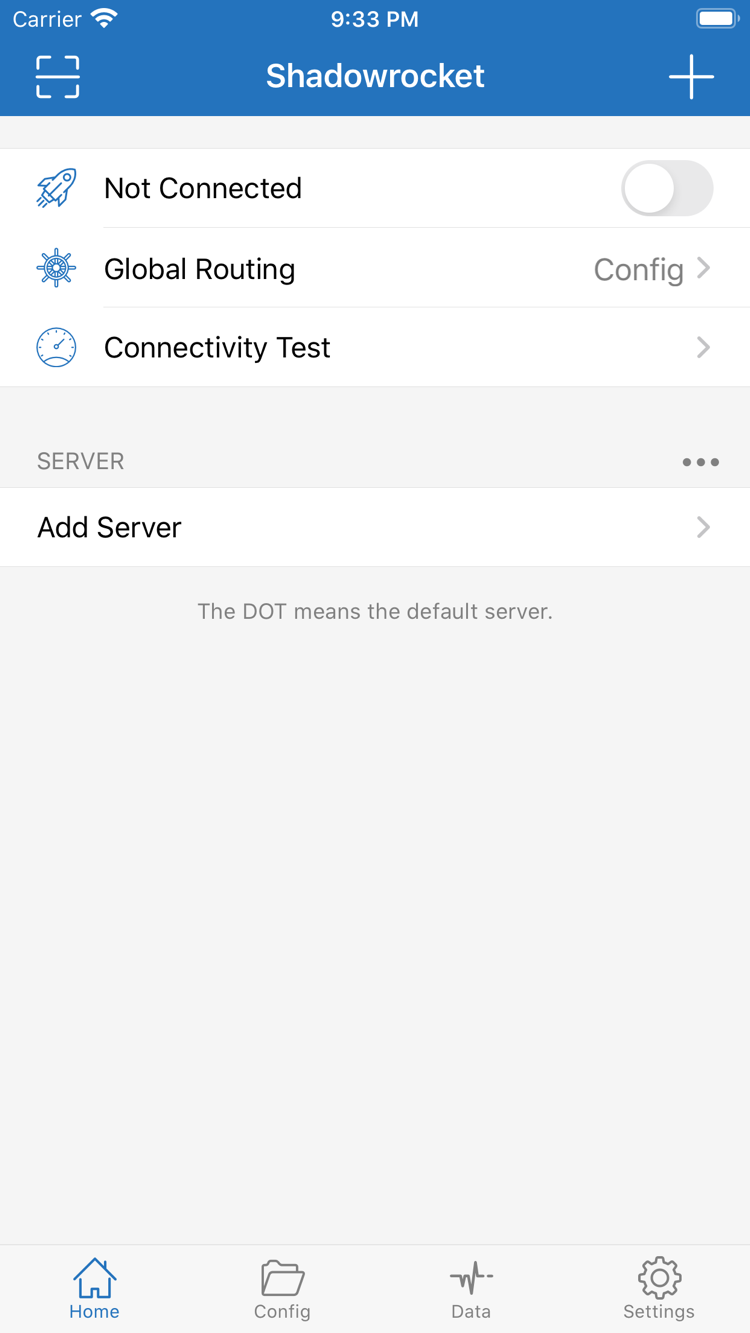
Official Shadowrocket Home screenshot showing the connection switch and Global Routing

Home / Config / Settings

Features & configuration

Keep these three roles distinct: Home manages connection entries, Config determines routing, and Settings controls connection behavior and diagnostics. Server reachability, correct rule matching, and access to the destination service are three separate things to verify.

Global Routing and rule order

Open Global Routing in Home. Config mode routes connections according to the active file; Proxy and Direct modes change how traffic is handled overall. To verify a rule, first make sure Config is selected, then check the file and Rule order in Config. Rules are evaluated from top to bottom, and the first match determines the policy: DIRECT connects directly, PROXY uses the proxy route, and REJECT blocks the connection. FINAL handles requests that did not match earlier rules and is usually placed last. Do not infer routing results from the connection toggle alone.

View terminology →

Rule · Syntax example

DOMAIN-SUFFIX,example.com,PROXY
IP-CIDR,192.168.0.0/16,DIRECT
FINAL,PROXY

App Store / Devices

Getting Shadowrocket on iPhone and iPad

Shadowrocket is available only on Apple platforms, and the App Store is the only place to get it. Purchase history under the same Apple ID can help you check eligibility to download again. Device compatibility, system requirements, and purchase eligibility are as listed on the App Store page. Before you begin, confirm which account you use for App Store purchases; the iCloud account signed in on your device may be different.

iPhone

On the product page, verify the app name, developer, and app ID before purchasing and installing. When you connect for the first time, the system may ask to add a VPN configuration. This authorization is required to establish a system network connection; proceed as prompted after confirming Shadowrocket initiated the request.

After installation, stay on Home and prepare your existing server details or subscription address before importing and testing. System requirements are as listed on the App Store page.

iPhone guide →

iPad

Use the Apple ID associated with the original purchase to check your purchase history and download status in the App Store. Eligible purchases may be shared between iPhone and iPad; check the App Store page for applicable terms. Buying the app and syncing personal configuration are separate actions.

The layout may vary by device, but the checks for Home, Config, and Global Routing are the same. After restoring, check the configuration file, selected entry, and VPN authorization again.

iPad guide →

Shadowrocket is also available on Mac and Apple TV from the same App Store. Check the App Store page for compatibility details.

View getting-started steps →
On the App StoreDownload Shadowrocket

Quick Start

Three steps to your first connection

These steps assume you already have your own server details or subscription. First establish a repeatable connection, then add complex rules and automatic connection conditions. Record a clear result at each step so you can return to the last known-good state if something goes wrong.

  1. 01 / Add Server

    Add an existing server or subscription

    Open Add Server in Home. To add a server manually, select the Type that matches the existing parameters, then check Host, Port, and authentication fields one by one. For a subscription, choose Subscribe and get the address from your service provider. After saving, return to Home, make sure the expected entry appears, and select the server you want to test.

    If the list does not change, first check whether the save completed, the address was truncated, or the returned content matches the import type. Before scanning information, verify its source; do not use a subscription address where a Config file address is expected, or vice versa. A successful import only confirms that the information was added to the client; it does not confirm that the server is available.

  2. 02 / Global Routing

    Choose a mode and check Config

    Return to Home and check Global Routing. For everyday rule-based routing, select Config and confirm which file is active in Config. Proxy and Direct can help compare behavior across different connection paths, but avoid switching back and forth without recording each result; otherwise, the results are not comparable.

    For the rules file, first check whether the final rule is the expected FINAL, then check whether broad conditions override later exceptions. For the first test, avoid changing DNS, protocol fields, and rule order at the same time. Change one variable at a time to pinpoint the issue. For an explanation of the modes, see the proxy modes guide.

    Understand the three modes →
  3. 03 / Connect & Check

    Connect and verify access to your destination

    Turn on the connection switch in Home, complete VPN configuration authorization when prompted, and check the connection status. Then run Connectivity Test and try accessing the destination you need to verify. Record the test result, system connection status, and destination access result separately; none can stand in for all the others.

    If the test passes but the destination is inaccessible, check the matching policy, domain resolution, and the destination service itself. If every entry fails, check your basic network and the status of your existing service first. To compare Wi-Fi and cellular, keep the configuration unchanged and use Diagnostics if needed. Remove personal credentials before sharing troubleshooting details.

    Troubleshoot connection issues →
View the complete guide →

Purchase / Verification

Verifying the official app and purchase details

This is the official Shadowrocket website and manual. When purchasing, identify the app by its product name, Shadowrocket, and its App Store listing. Shadowrocket is a closed-source commercial app. To verify the official app, check the developer, official icon, and app ID—not its position in search results.

Official Shadowrocket app icon

Shadowrocket

Developer: Shadow Launch Technology Limited

App ID: 932747118

Check these three details on the App Store page

On the product page, check the app name and official icon, verify the developer is Shadow Launch Technology Limited, and confirm the page URL contains id932747118. All three should refer to the same product. A similar name is not enough, and the icon alone is not conclusive.

The icon used on this site matches the official App Store artwork. Check the App Store page directly for the purchase price, current compatibility, and update history. If search results are difficult to identify, open the download guide and use its App Store link to go to the product page.

See how to verify the official app →

App Store availability and account region

Whether an app appears in the App Store depends on the storefront for your purchase account and the app's availability there. Being able to open the product page on the web does not mean your account can complete the purchase. If you cannot find it, first check the country or region of the Apple ID used for App Store purchases, then review the product page notices.

Before changing your region, check conditions such as your balance, existing subscriptions, and payment method. Do not change account settings just to refresh search results. If the App Store says the app is temporarily unavailable, follow the information on the page. If you have already purchased it, check your account's purchased items for download eligibility.

Read about App Store availability →

What a one-time purchase covers

The US storefront price is about $2.99, paid once. Other storefronts show local currency; the price at checkout on the App Store page applies. The purchase covers a license to use the client; it does not include connection servers, subscription addresses, or an ongoing connection service.

A one-time app purchase is not a service plan.This site does not provide, sell, or recommend nodes or subscriptions. Get existing subscriptions from your service provider, and check their status and usage with that provider. App purchases, subscription updates, and Config rules are separate; check each one individually when troubleshooting.

See pricing and one-time purchase details →

Redownloading the app and restoring personal configurations

Purchase history under the same Apple ID can help you redownload the app on eligible iPhone and iPad devices. Check the App Store page for purchase eligibility. After reinstalling or changing devices, first verify the account and purchase status in the App Store, then install the app. Updates are also managed through the App Store.

Restoring a purchase does not restore personal data. Before moving to a new device, keep a copy of your Config file and check iCloud sync status and the options available in the app. After the move, check each existing subscription, manual parameter, current mode, and active file. Confirm connection authorization on the new device; do not assume verification is complete just because entries appear in the list.

Read about restoring purchases →
Common questions

Connected, but why are some destinations still inaccessible?

The connection status only shows the tunnel state; it does not guarantee access to every destination. First check Global Routing and the active Config, then verify the rule and policy that match the destination. If other destinations work, also check the destination's name resolution and service status. Keep the same entry and network while troubleshooting; avoid changing several conditions at once.

See the step-by-step troubleshooting approach →
Does updating a subscription also replace the rules file?

Server subscriptions and Config files are separate. Updating a subscription generally refreshes its server list; do not assume it also changes the rules file. After updating, check the group in Home and the active file in Config. If behavior changes, first compare the selected entry and mode, then determine whether the rules are involved.

See the Subscribe and Config glossary →
Why does Data differ from the traffic shown by my service provider?

The two statistics may use different time periods, measurement scopes, and reset schedules. Check the starting point for the Data statistics in the client, then compare it with your service provider's measurement details. Client records are useful for observing connection activity on your device; actual service usage is determined by the provider's terms. Do not subtract the two figures and treat the difference as proof of a problem.

Read about traffic statistics →

Technical Notes

Technical notes and further reading

Once your basic connection works, explore the topic relevant to your issue. App Store availability is an account and purchase question; protocol choice concerns parameters and transport; rule order determines the connection path. Identifying the right layer is more likely to produce a repeatable result than resetting everything at once.

Download Shadowrocket